

- AI usage meter, which filters the events with the name
ai_usageand sums thetotal_tokensfield. - Video streaming meter, which filters the events with the name
video_streamedand sums thedurationfield. - File upload meter, which filters the events with the name
file_uploadedand sums thesizefield.
Creating a Meter
To create a meter, navigate to the Meters section under your Products tab in the dashboard and click Create Meter.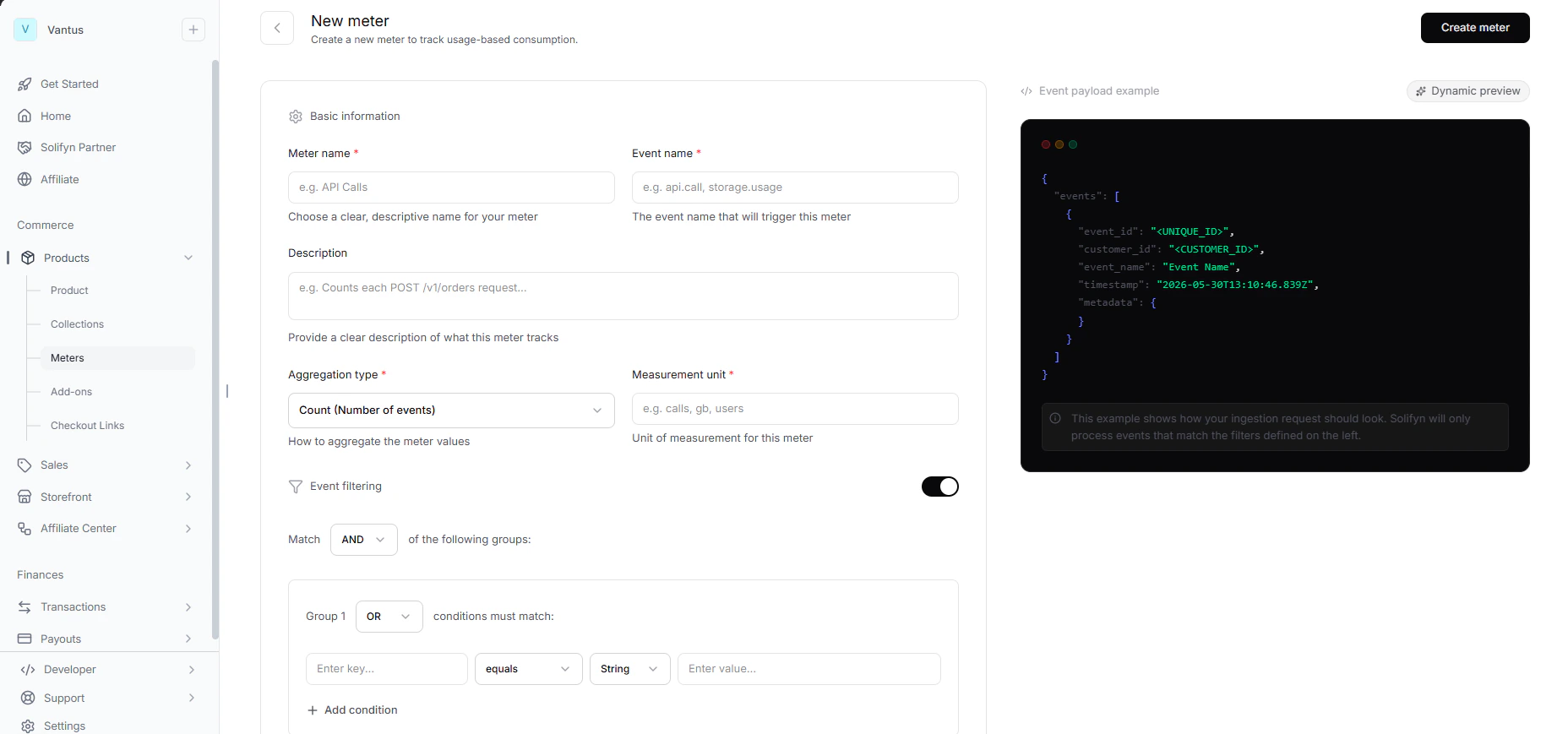
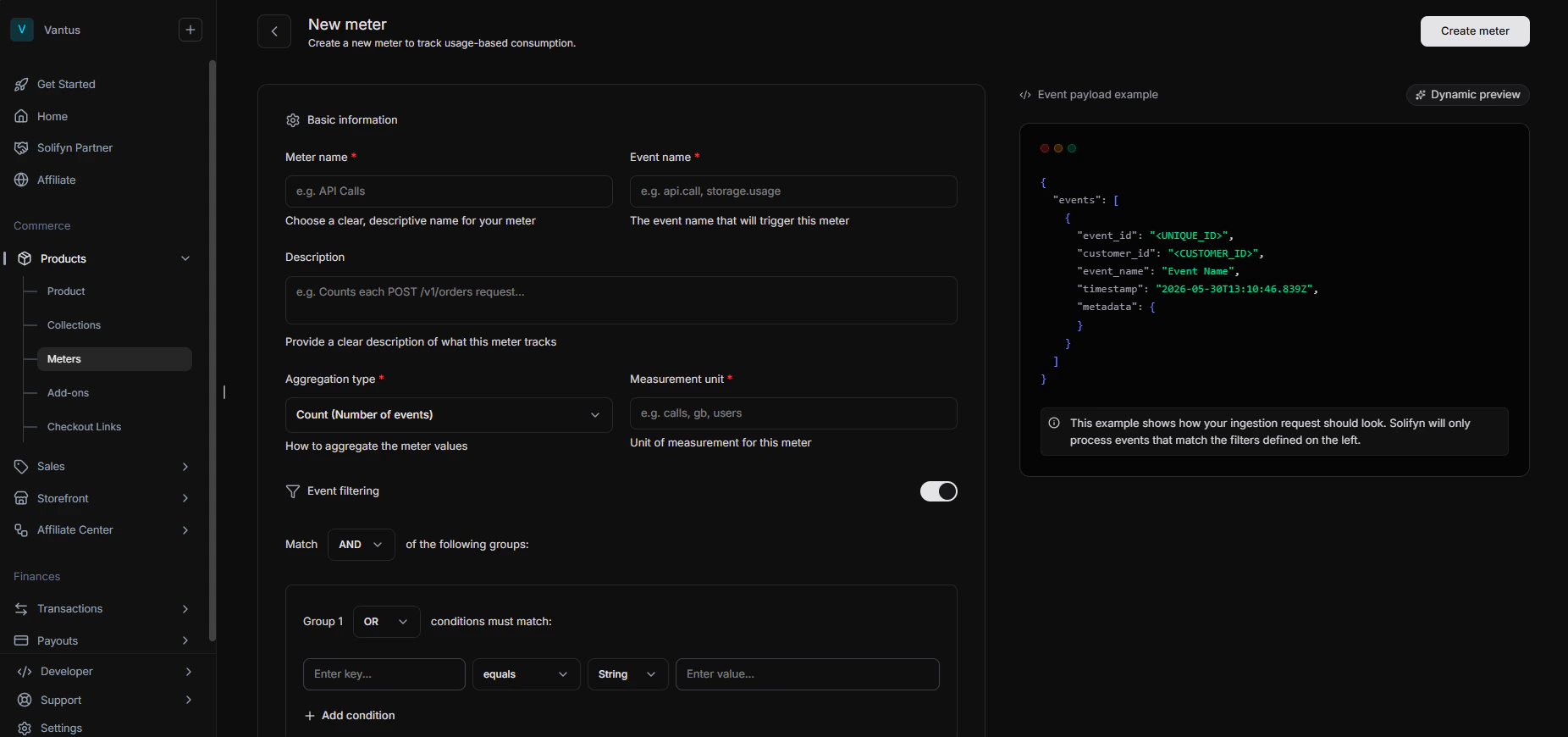
- Name & Description: A clean display name and description.
- Event Name: The exact string of the event to track (e.g.
api.request). - Aggregation Strategy: How usage values should be computed over the billing period.
- Aggregation Key: For properties, the key in metadata to target (e.g.
tokens). - Unit Label: The suffix (e.g.
requests,GB,tokens).
Aggregation Strategy
Solifyn supports four distinct aggregation strategies:- COUNT: Counts the total number of events received that match the event name. The event value is ignored. (Ideal for counting API calls or signups).
- SUM: Sums the numeric
valueof all matched events. (Ideal for tracking total gigabytes transferred, hours streamed, or dollar amounts spent). - MAX: Keeps the highest
valuerecorded among all matched events. (Ideal for peak resource usage billing). - LAST: Keeps the
valuefrom the most recent event. (Ideal for seat adjustments or storage space status).
Aggregation Examples
Aggregation Examples
Consider the following stream of events sent for a single customer:Here is the resulting aggregated usage calculated by Solifyn for each strategy:
- COUNT:
3(3 total events ingested) - SUM:
60(10 + 20 + 30) - MAX:
30(highest value) - LAST:
30(most recent value)
Advanced Filters
Meters support advanced filters configured in JSON to match custom key-value pairs inside the event’smetadata.
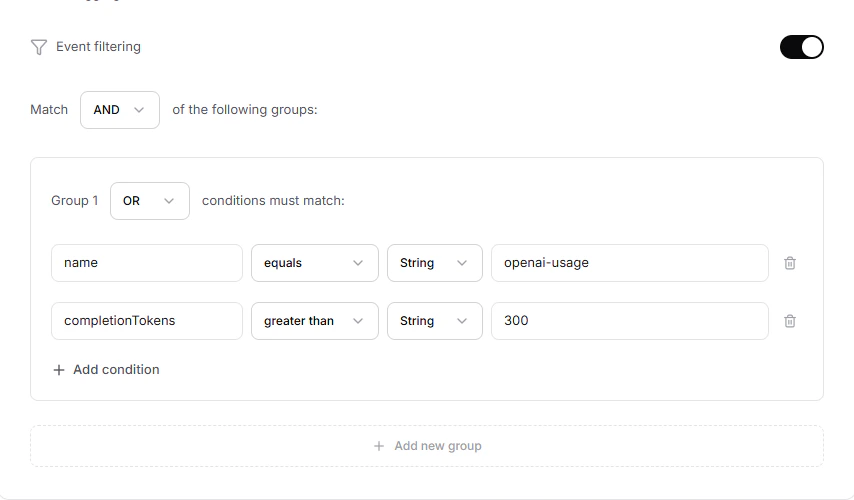
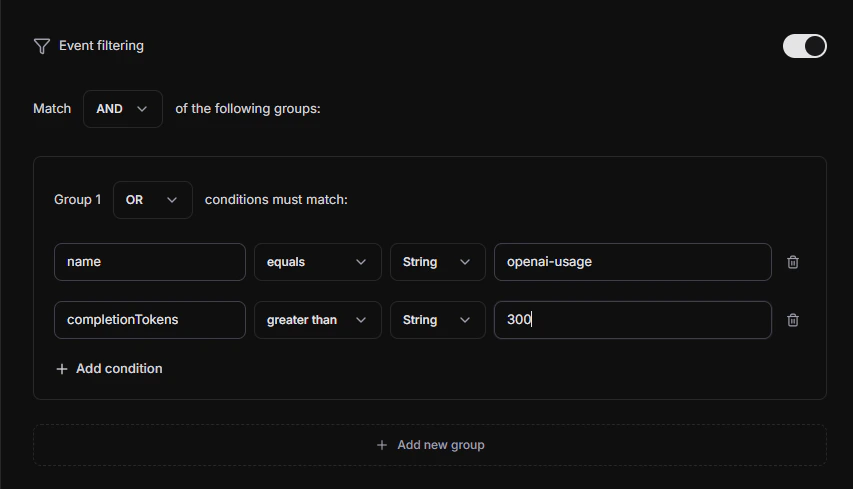
- Property: The exact metadata key.
- Operator & Value: Match constraints such as region equals
asia.
Managing Meters
Once created, you can track meter activities directly in the Dashboard:- View event history and chart views of usage over time.
- Archive a meter if it is no longer needed.
- Unarchive archived meters.